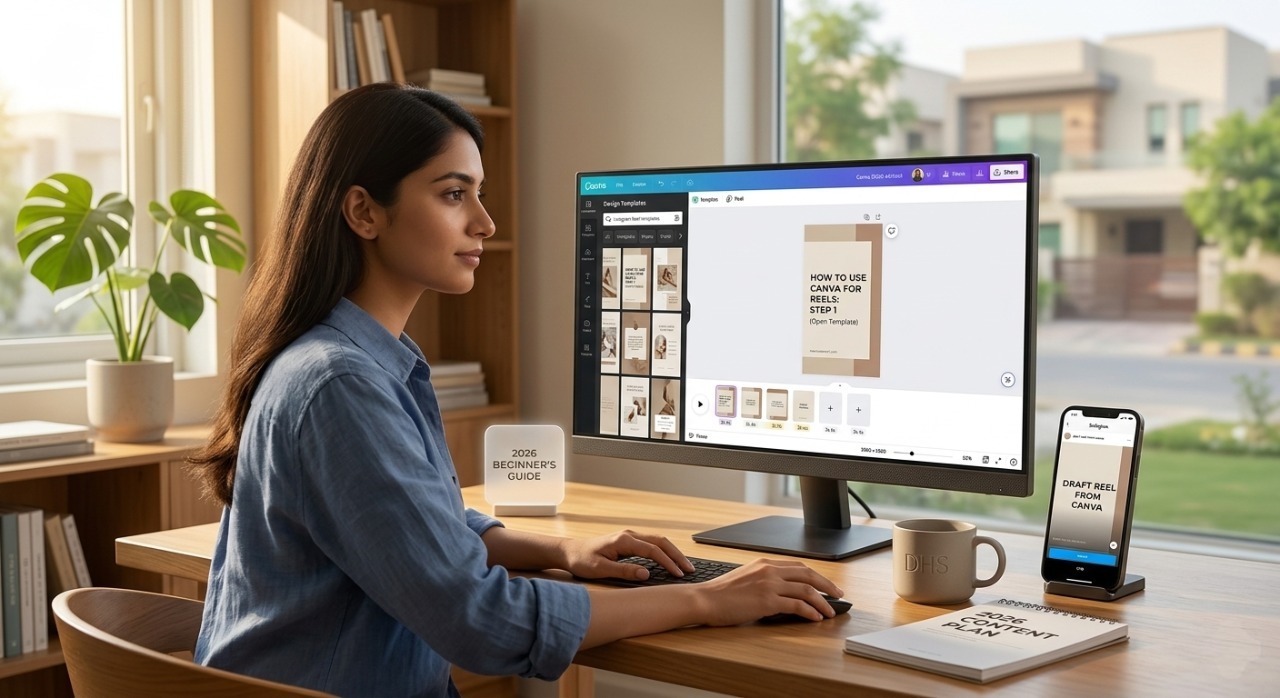
If you have been scrolling Instagram lately, you already know that Reels are dominating the feed. Short-form video is no longer a trend — it is the default format for reaching new audiences in 2026. But here is the problem most creators face: they either do not know how to edit video, cannot afford expensive software, or simply do not have the time.
That is exactly where Canva comes in.
Canva is not just a design tool for social media graphics anymore. In 2026, it is one of the fastest and easiest ways to create professional-looking Instagram Reels — without filming a single second of footage, without any video editing experience, and without paying for Canva Pro.
This guide will show you exactly how to use Canva for Reels, step by step, from opening a blank canvas to hitting publish on Instagram.
Why Use Canva for Instagram Reels?
Before we get into the steps, it is worth understanding why Canva is one of the best tools available for this specific task.
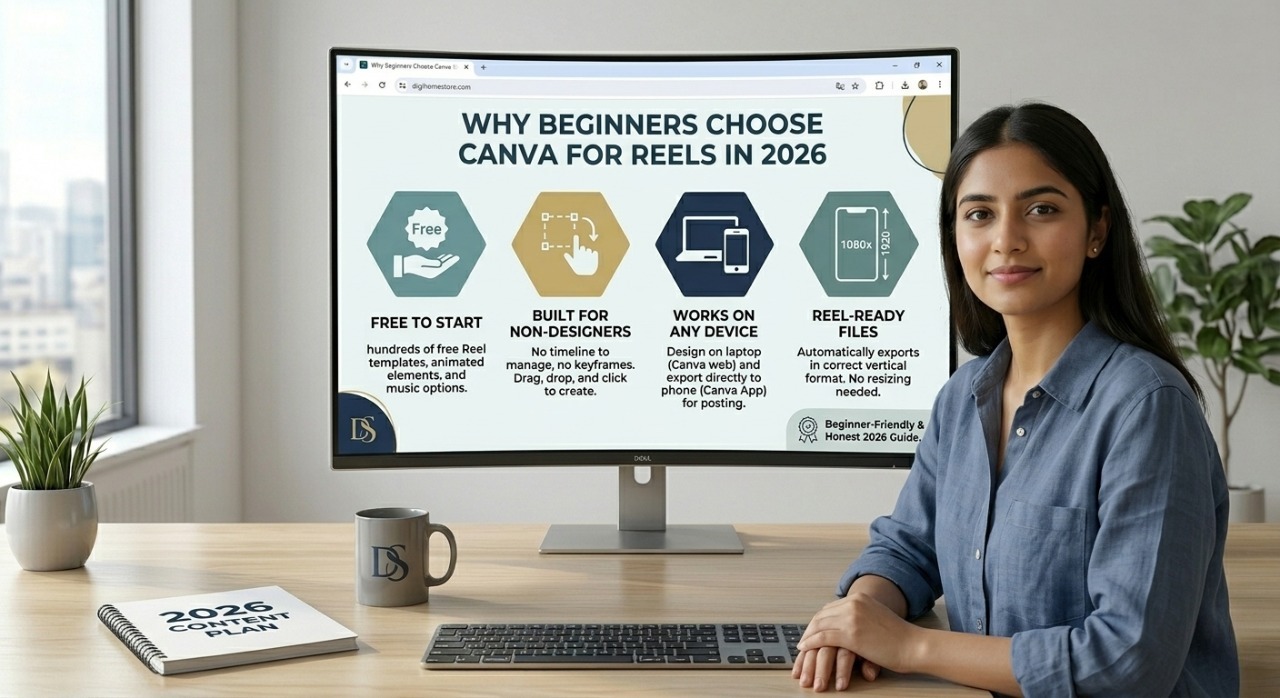
It is free to start.
Canva’s free plan includes hundreds of Reel templates, animated elements, and music options. You do not need to upgrade to create content that looks polished and professional.
It is built for non-designers.
Everything in Canva is drag and drop. There is no timeline to manage, no keyframe animation to set up, and no learning curve. If you can click and type, you can make a Reel.
It works on any device.
You can create on your laptop and export directly to your phone for posting, or design entirely on the Canva mobile app. Either way works.
It produces Reel-ready files automatically.
Canva exports in the correct vertical format (1080 x 1920 pixels) that Instagram requires for Reels. You do not need to resize or convert anything.
What You Need Before You Start
You need three things and nothing else:
- A free Canva account — sign up at canva.com with your email or Google account
- Your brand colours and logo (optional but useful — even just knowing your main colour helps)
- An idea for your first Reel — we will cover formats below if you are stuck
That is genuinely it. No camera, no microphone, no video editing software.
Step 1 — Open Canva and Search for Reel Templates
Once you are logged into Canva, go to the search bar at the top of the homepage and type “Instagram Reel.”
Canva will show you hundreds of pre-made Reel templates — animated, text-based, and video-based. These templates are already set to the correct size (1080 x 1920 pixels, vertical format) so you never have to worry about dimensions.
How to choose a template: Look for one that matches the mood of your content. If you are posting business tips, look for clean, minimal designs with bold text. If you are posting lifestyle or fashion content, look for templates with warmer colours and more movement.
Click any template to open it in the Canva editor. You will see your Reel canvas on the right and all your editing tools on the left.
💡 Do not spend too long choosing a template. Pick one that is roughly right and move on. You can change every colour, font, and element once you are inside.
Step 2 — Understand the Canva Editor for Reels
The Canva editor for Reels works differently from designing a static image. Instead of one single page, your Reel is made of multiple slides — each slide becomes a scene in your video.
Here is what you will see:
- The canvas (centre) — your Reel preview. What you see here is exactly what Instagram will show.
- The timeline (bottom) — shows each slide and how long it plays. You can drag to make slides shorter or longer.
- The left panel — where you add elements, text, images, music, and animations.
- The pages panel (left side) — shows all your slides in order. You can drag them to reorder your Reel.
Each slide in a Canva Reel typically plays for 2 to 5 seconds. For a 15 to 30 second Reel, you want between 5 and 12 slides.
Step 3 — Write Your Reel Script First
This is the step most beginners skip — and it is why their first Reels feel random or confusing.
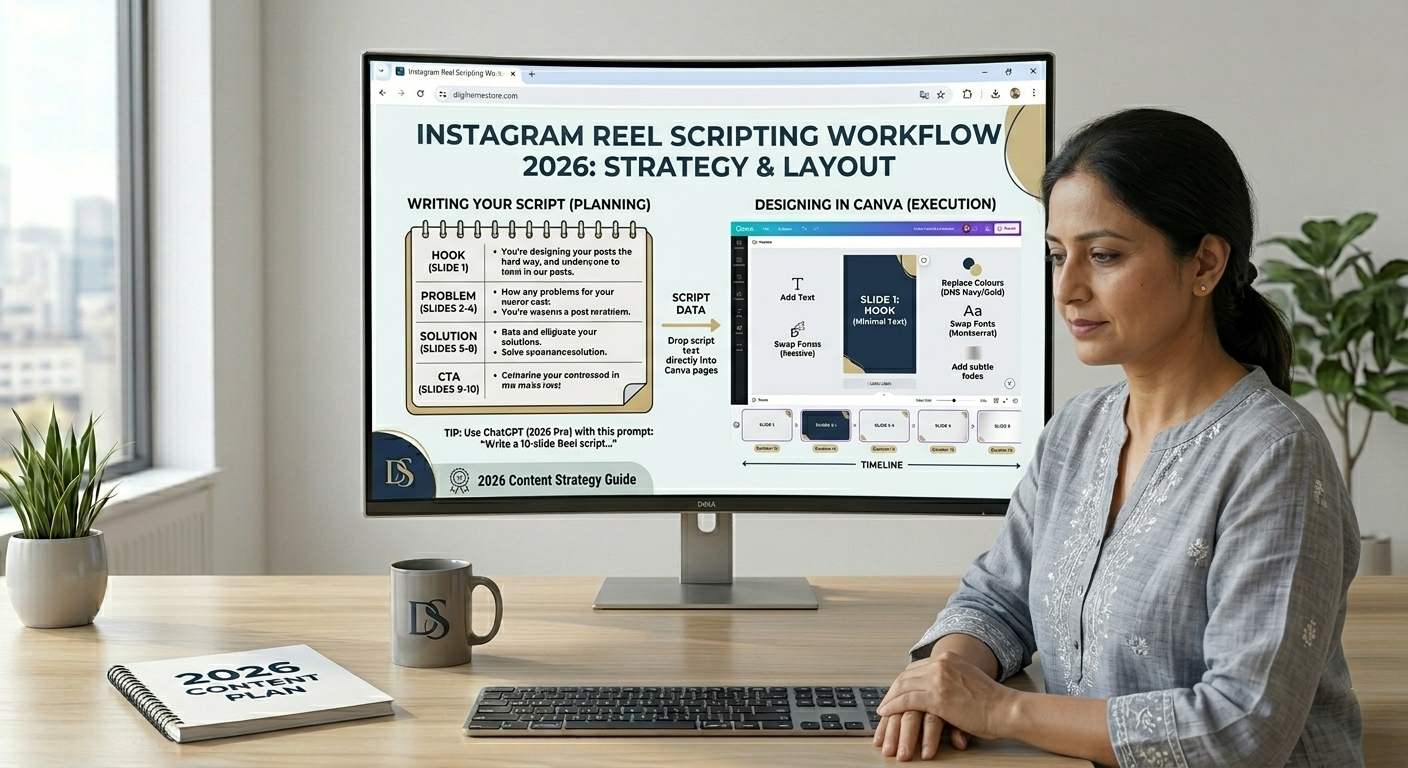
Before you touch any design in Canva, write out what you want your Reel to say. A Reel script is not an essay. It is short, punchy sentences — one idea per slide.
The simplest Reel structure that consistently performs well:
- Slide 1 (Hook): One sentence that creates curiosity or states a bold claim. Example: “You’re designing your Instagram posts the hard way.”
- Slides 2-4 (Problem): 2 to 3 slides that expand on the problem or pain point
- Slides 5-8 (Solution): The actual tips, steps, or value you are delivering
- Slide 9-10 (CTA): Tell people what to do next. “Save this.” “Follow for more.” “Link in bio.”
Once you have your script written — even just as bullet points on a notepad — designing in Canva becomes 10 times faster because you already know what every slide needs to say.
💡 If you are stuck writing the script, try this ChatGPT prompt: “Write a 10-slide Instagram Reel script about [your topic] for [your target audience]. Each slide should have one short sentence. Start with a curiosity hook and end with a clear call to action.”
Step 4 — Customise Your Slides
Now you are ready to make the template yours. Here is what to change on every slide:
Replace the placeholder text — Click on any text element and type your own content from the script you wrote in Step 3. Keep text short — never more than one or two lines per slide. Viewers read fast and scroll faster.
Change the colours to match your brand — Click on any coloured element, then click the colour swatch in the top toolbar. Type in your brand colour hex code (for example, DigiHomeStore uses deep navy and gold). Canva also has a “Match brand” feature that applies your colours across the whole Reel in one click.
Swap the fonts — Click on any text element, then click the font name in the top bar. Bold, sans-serif fonts like Montserrat, Poppins, or Syne work best for Reels because they are readable even on small mobile screens.
Add or remove slides — Right-click any slide in the pages panel and choose Duplicate, Delete, or Add Page. Keep your Reel between 15 and 35 seconds total — this is the sweet spot for completion rate on Instagram in 2026.
Add animations — Click on any element, then click “Animate” in the top toolbar. The Fade or Rise animations work well for text. Keep animations subtle — heavy transitions distract from your message.
Step 5 — Add Music or a Voiceover
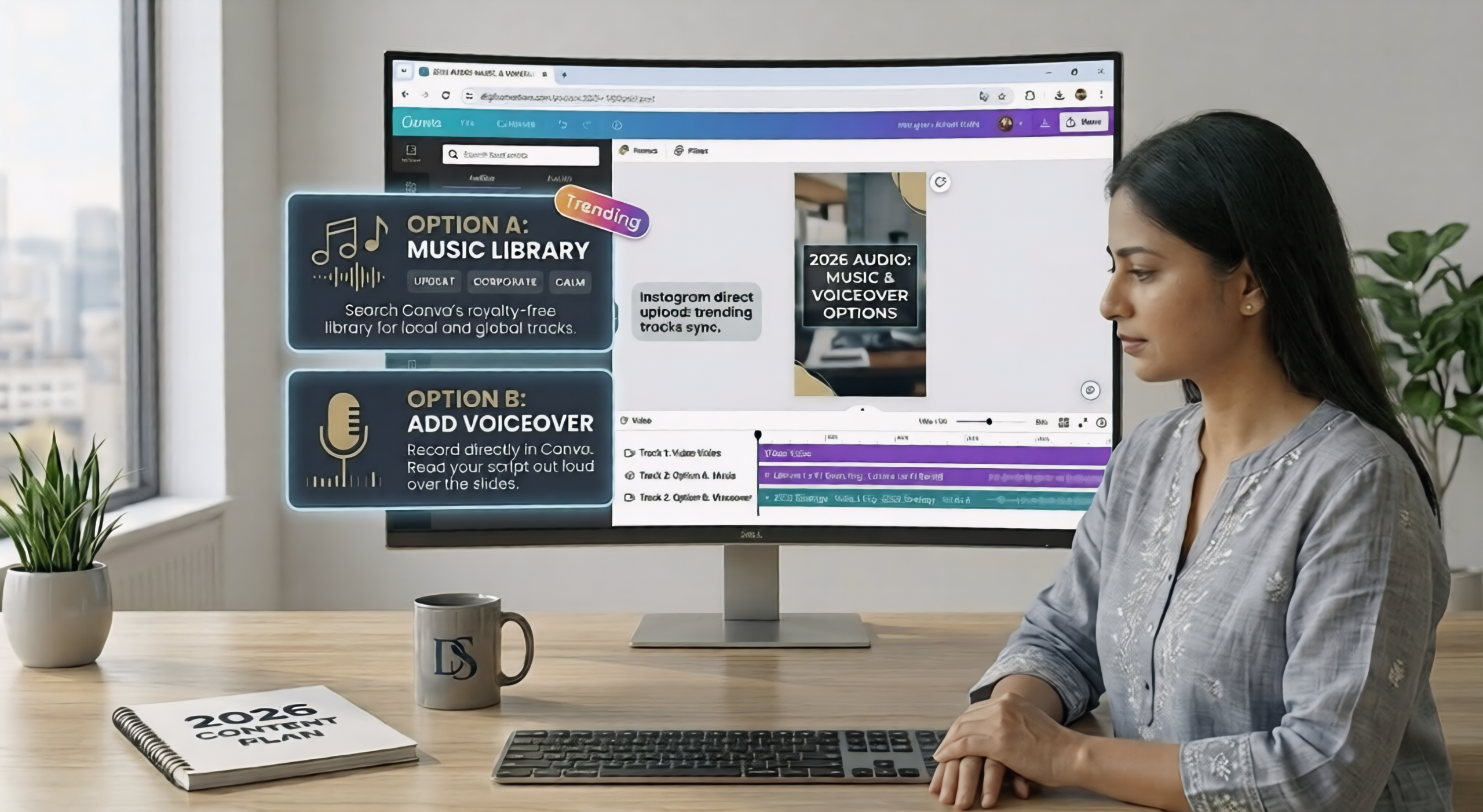
Music makes a significant difference to how a Reel performs. Instagram’s algorithm slightly favours Reels that use trending audio.
Option A — Add music from Canva’s library:
Click the left panel → Audio → search for a genre or mood (upbeat, corporate, calm). Canva’s audio library is royalty-free, so there are no copyright issues when you export and post.
Option B — Add your own voiceover:
Click left panel → Audio → Record. Canva has a built-in voice recorder. Read your script out loud over the slides. This is the most engaging format for educational content because it feels personal and direct.
Option C — No audio, post on Instagram and add audio there:
Export your Reel from Canva as a silent video (MP4), then upload it to Instagram and select a trending audio track directly inside the Instagram app. Many creators prefer this method because Instagram’s own audio library updates in real time with trending sounds.
Step 6 — Export Your Reel from Canva
When your Reel is ready, click the Share button in the top right corner → Download → select MP4 Video as the file type.
Make sure the resolution is set to 1080p. Click Download. Canva will process the video (usually takes 30 to 60 seconds) and save it to your device.
Your Reel is now ready to post.
💡 Before uploading to Instagram, watch the entire video one more time on your phone. Check that the text is readable, nothing is cut off at the edges, and the timing feels right. It takes 30 seconds and saves you from posting something with a visible mistake.
Step 7 — Post Your Reel on Instagram
Open Instagram → tap the + icon → select Reel → upload your exported MP4 file.
On the posting screen:
- Add or swap the audio if you want a trending sound
- Write a caption (hook in line 1, 2 sentence expansion, clear CTA)
- Add 5 to 8 hashtags — be specific, not generic (not #viral, but #canvatemplates or #instagramgrowthtips)
- Choose a cover image — pick the slide with the clearest, most eye-catching text
- Hit Share
Your first Canva Reel is live.
How to Make Better Reels Faster — The Shortcut Most Creators Use
Once you have made your first few Reels using the process above, you will notice that the most time-consuming part is not the design — it is starting from scratch every single time. Choosing a template, adjusting the layout, matching the colours, finding the right style for each topic.
This is where having a ready-made template pack changes everything.
Instead of browsing Canva’s generic library for 20 minutes, you start with a set of templates already designed for your niche — in your brand colours, with the right font pairings, sized perfectly for Reels. You open it, drop in your script text, and export. The whole process goes from 40 minutes to under 10.
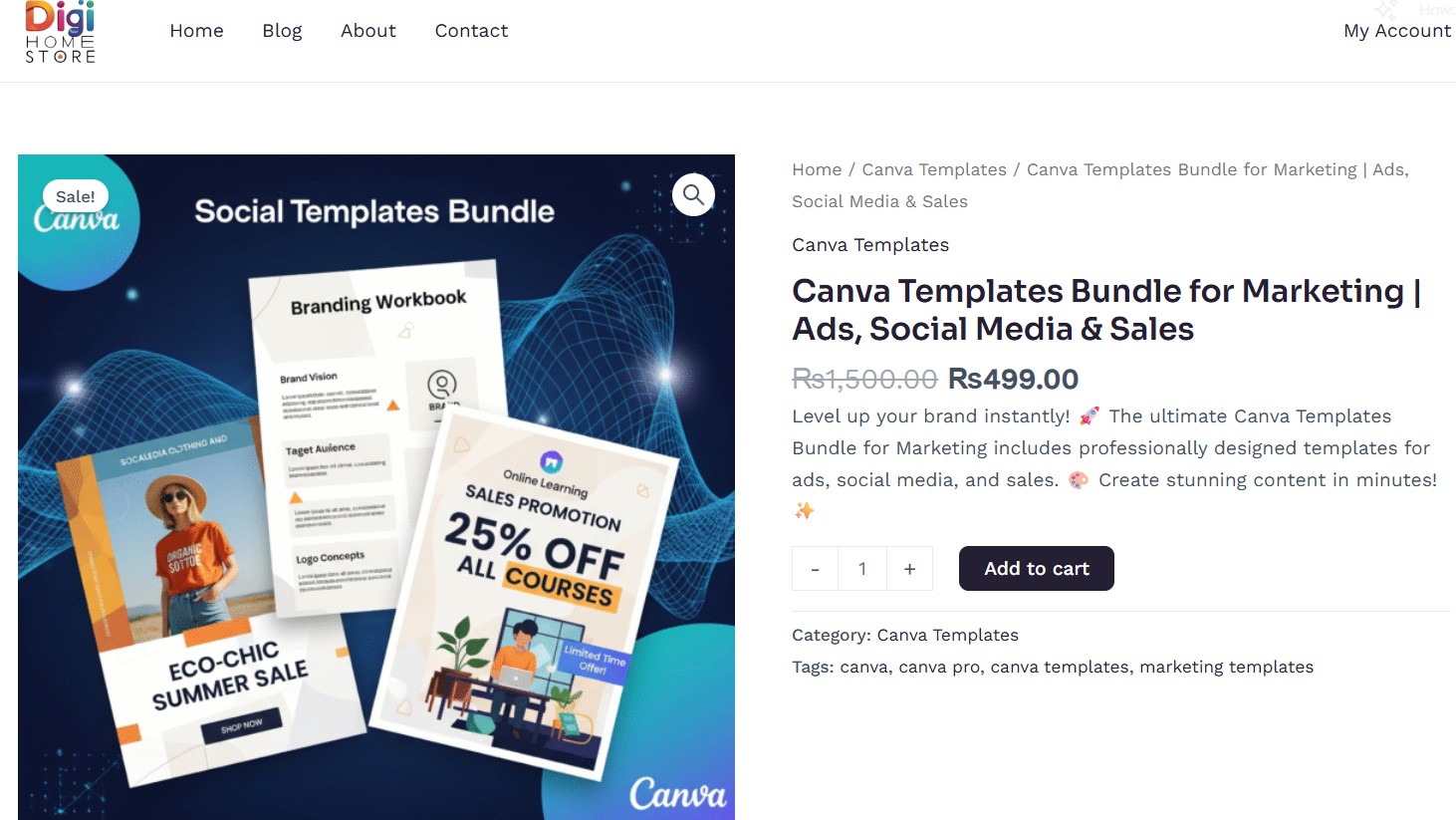
Our Canva Templates Bundle at DigiHomeStore includes professionally designed templates for social media posts, Reels, ads, and sales graphics — all editable in Canva’s free version. No Pro subscription required.
-
Canva Templates
Canva Templates Bundle for Marketing | Ads, Social Media & Sales
Original price was: ₨1,500.00.₨499.00Current price is: ₨499.00. Add to cart
And if you want to go one step further — skipping the design process entirely and using ready-made AI-generated video clips instead of text slides — our AI & Viral Reels Bundle includes over 62,000 pre-made video clips across dozens of categories, ready to drop into Canva or CapCut and post within minutes.
Ultimate AI & Viral Reels Bundle | Download | Free PDF Bonus
Original price was: ₨3,999.00.₨1,499.00Current price is: ₨1,499.00.
Add to cart

Both are one-time downloads. No subscriptions, no monthly fees.
Common Canva Reel Mistakes to Avoid
Too much text per slide — If a viewer has to pause to read your slide, you have lost them. One idea, maximum two lines, per slide.
Using low-contrast colours — White text on a light background or dark text on a dark background is invisible on mobile screens. Always check contrast before exporting.
Ignoring the “safe zone” — Instagram crops the edges slightly when a Reel plays. Keep all important text and elements at least 150 pixels away from the edges of your canvas in Canva.
Making Reels too long — Canva lets you make Reels up to 90 seconds. Instagram allows it. But in 2026, anything over 35 seconds needs to be genuinely compelling to hold attention. Start short, build to longer formats once you know what your audience watches.
Posting once and giving up — The first three to five Reels almost always underperform. The algorithm needs time to learn your audience, and you need time to learn what works. Post consistently for at least four weeks before judging the results.
Frequently Asked Questions
Can I use Canva for Instagram Reels for free?
Yes. Canva’s free plan includes Reel templates, animated elements, and audio. You do not need a Pro subscription to create and export professional-quality Reels.
What size should a Canva Reel be?
1080 x 1920 pixels. This is the standard vertical format for Instagram Reels, TikTok, and YouTube Shorts. Canva’s Reel templates are already set to this size automatically.
Can I add music to a Canva Reel?
Yes. Canva has a built-in royalty-free audio library you can search and add to your Reel. Alternatively, export the video silently and add trending audio directly inside the Instagram app when posting.
How long should a Canva Reel be?
For beginners, aim for 15 to 30 seconds. This length has the highest completion rate on Instagram in 2026, which is the signal the algorithm uses to decide whether to show your Reel to more people.
Do I need to film myself to make a Canva Reel?
No. Text-on-background Reels made entirely in Canva perform just as well as face-to-camera videos — sometimes better, because they are faster to produce consistently. Consistency beats production value at every stage of account growth.
Start Creating Today
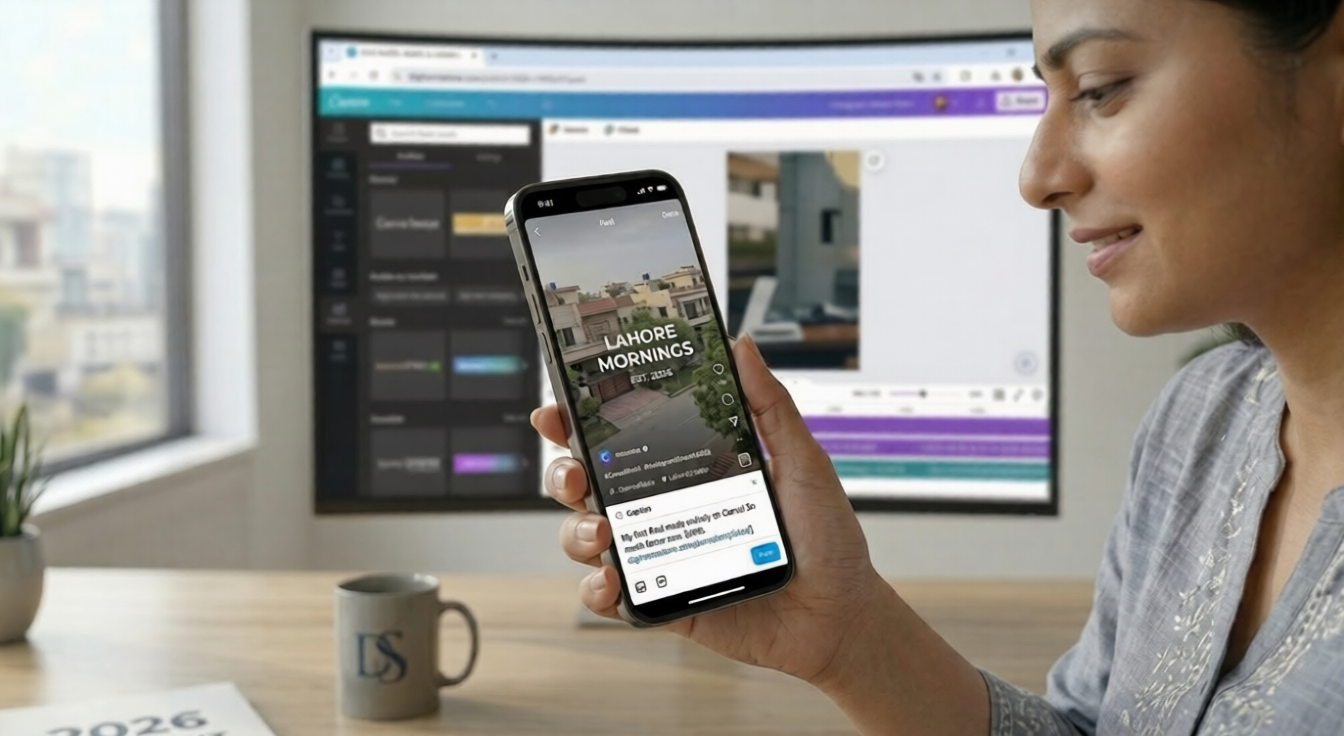
You now have the complete process to create Instagram Reels using Canva — from opening your first template to hitting publish. The tools are free, the process is repeatable, and the learning curve is genuinely short.
The only thing left is to make your first one. Pick a topic, open Canva, and follow the seven steps above. Your first Reel does not need to be perfect. It needs to be posted.
If you want to speed up the process, grab our Canva Templates Bundle for ready-to-use Reel templates, or the AI & Viral Reels Bundle for 62,000+ pre-made video clips. Both are instant downloads with no subscription required.
Found this guide helpful? Share it with a fellow creator — it might be the push they needed to start posting.